Kimi Code Integration
Use GPT-5, Claude, Gemini, or any model with Kimi Code CLI. Custom provider configuration, full cost tracking.
Kimi Code CLI is an open-source, AI-powered coding agent developed by Moonshot AI designed to automate software development tasks directly within your terminal. It can read and edit code, execute shell commands, search files, and autonomously manage complex coding workflows.
Kimi Code features first-class support for the models.dev registry, a community-maintained model catalog. This allows Kimi Code to query and configure LLM Gateway dynamically — fetching all compatible models, capabilities (such as thinking or vision), and pricing without requiring manual TOML editing.
Prerequisites
- An LLM Gateway API key — sign up free (no credit card required)
Setup
Step 1: Install Kimi Code CLI
If you haven't already, install Kimi Code CLI.
macOS or Linux:
1curl -fsSL https://code.kimi.com/kimi-code/install.sh | bash1curl -fsSL https://code.kimi.com/kimi-code/install.sh | bashHomebrew (macOS/Linux):
1brew install kimi-code1brew install kimi-codeWindows (PowerShell):
1irm https://code.kimi.com/kimi-code/install.ps1 | iex1irm https://code.kimi.com/kimi-code/install.ps1 | iex
Confirm the installation:
1kimi --version1kimi --versionStep 2: Launch Kimi Code and Open the Provider Manager
Start the interactive terminal in your project directory:
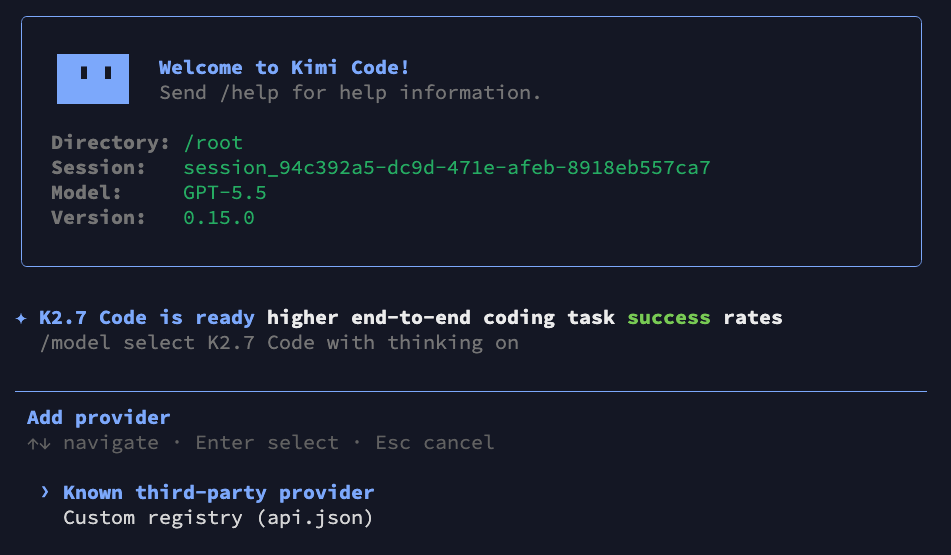
1kimi1kimiOnce loaded, type the /provider command and press Enter. Select Known third-party provider to fetch the catalog from the registry:
Step 3: Select LLM Gateway
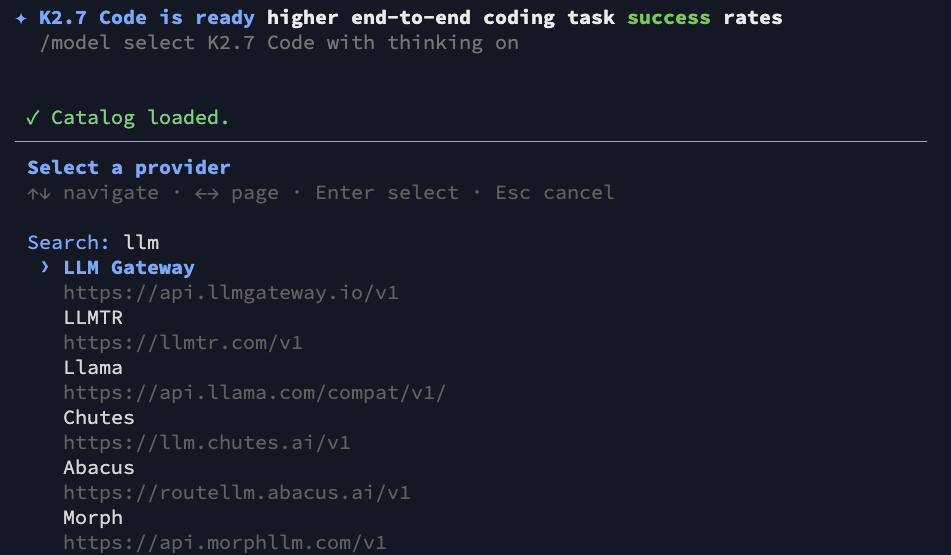
Type llm to filter the providers and select LLM Gateway from the list:
Step 4: Enter Your API Key
When prompted, paste your LLM Gateway API key and press Enter. Kimi Code will save it securely to your local configuration:
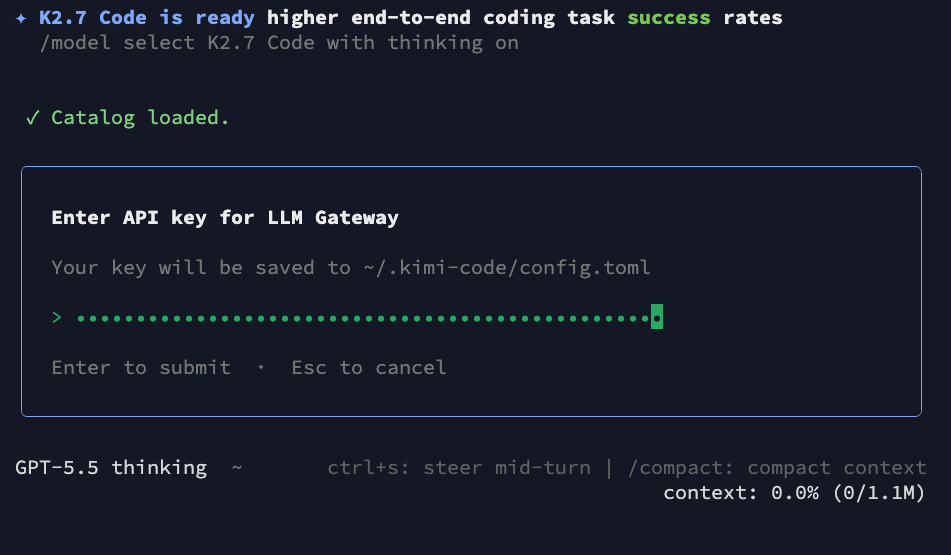
Your credentials are saved locally to ~/.kimi-code/config.toml.
Step 5: Select a Model and Toggle Thinking
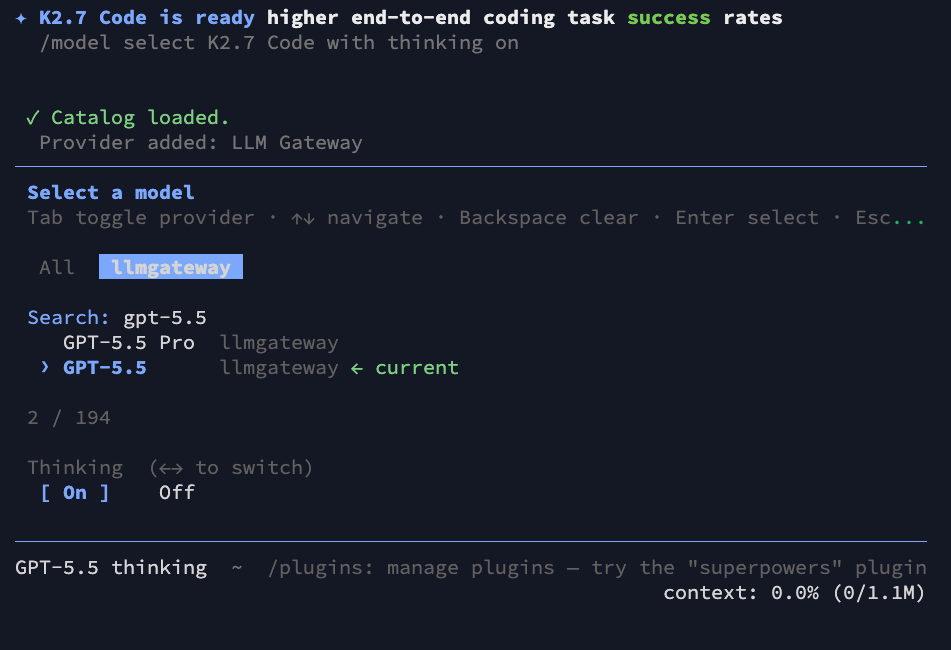
The LLM Gateway catalog is now loaded. Use the arrow keys to browse or type to search for your desired model. Select the llmgateway tab to view only LLM Gateway models.
You can also toggle the Thinking option (On/Off) at the bottom depending on the model's capabilities:
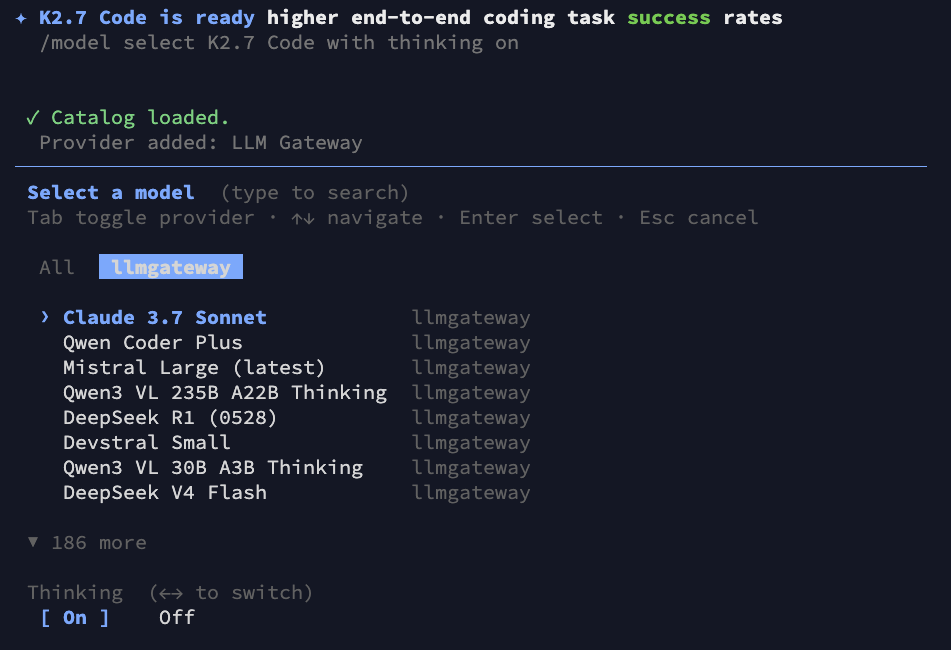
For example, type gpt-5.5 to find the latest reasoning model, select it, and press Enter:
Step 6: Start Coding
All set! Kimi Code is now configured. Your requests will be securely routed through LLM Gateway, allowing you to use advanced models for local autonomous coding while showing real-time usage and cost statistics on your LLM Gateway dashboard.
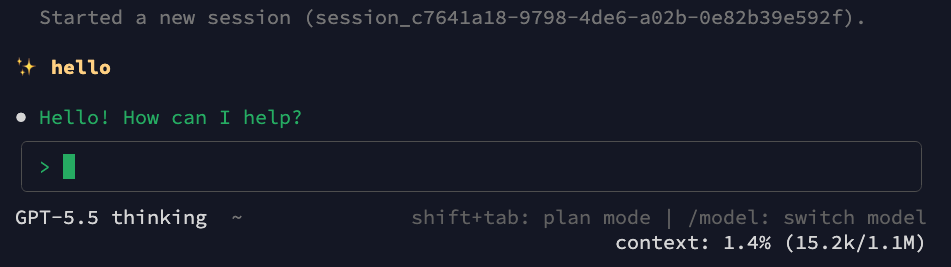
Use /model in the terminal session at any time to switch models.
Manual Configuration (Advanced)
If you prefer to configure your environment manually without using the interactive provider manager, you can write settings directly to your configuration file at ~/.kimi-code/config.toml (or C:\Users<YourUsername>.kimi-code\config.toml on Windows).
Here is an example TOML configuration that registers GPT-5.5, Claude 3.7 Sonnet, DeepSeek R1, and Qwen3.7 Max manually:
1default_model = "llmgateway/gpt-5.5"2
3[providers.llmgateway]4type = "openai"5api_key = "llmgtwy_your_api_key_here"6base_url = "https://api.llmgateway.io/v1"7
8[models."llmgateway/gpt-5.5"]9provider = "llmgateway"10model = "gpt-5.5"11max_context_size = 105000012max_output_size = 12800013capabilities = [ "thinking", "tool_use" ]14display_name = "GPT-5.5"15
16[models."llmgateway/claude-3.7-sonnet"]17provider = "llmgateway"18model = "claude-3.7-sonnet"19max_context_size = 20000020max_output_size = 819221capabilities = [ "image_in", "thinking", "tool_use" ]22display_name = "Claude 3.7 Sonnet"23
24[models."llmgateway/deepseek-r1"]25provider = "llmgateway"26model = "deepseek-r1"27max_context_size = 13107228max_output_size = 819229capabilities = [ "thinking", "tool_use" ]30display_name = "DeepSeek R1"31
32[models."llmgateway/qwen3.7-max"]33provider = "llmgateway"34model = "qwen3.7-max"35max_context_size = 100000036max_output_size = 6553637capabilities = [ "thinking", "tool_use" ]38display_name = "Qwen3.7 Max"1default_model = "llmgateway/gpt-5.5"2
3[providers.llmgateway]4type = "openai"5api_key = "llmgtwy_your_api_key_here"6base_url = "https://api.llmgateway.io/v1"7
8[models."llmgateway/gpt-5.5"]9provider = "llmgateway"10model = "gpt-5.5"11max_context_size = 105000012max_output_size = 12800013capabilities = [ "thinking", "tool_use" ]14display_name = "GPT-5.5"15
16[models."llmgateway/claude-3.7-sonnet"]17provider = "llmgateway"18model = "claude-3.7-sonnet"19max_context_size = 20000020max_output_size = 819221capabilities = [ "image_in", "thinking", "tool_use" ]22display_name = "Claude 3.7 Sonnet"23
24[models."llmgateway/deepseek-r1"]25provider = "llmgateway"26model = "deepseek-r1"27max_context_size = 13107228max_output_size = 819229capabilities = [ "thinking", "tool_use" ]30display_name = "DeepSeek R1"31
32[models."llmgateway/qwen3.7-max"]33provider = "llmgateway"34model = "qwen3.7-max"35max_context_size = 100000036max_output_size = 6553637capabilities = [ "thinking", "tool_use" ]38display_name = "Qwen3.7 Max"Why Use LLM Gateway with Kimi Code CLI?
- 210+ models — Access GPT-5.5, Gemini, Llama, DeepSeek, and more in a single CLI configuration.
- Unified cost tracking — Get a detailed breakdown of costs per prompt and session in your dashboard.
- Response caching — Automatically cache repeated requests (such as parsing or building commands) to save API costs.
- Automatic fallback — Keep coding even if a provider encounters temporary downtime.
- Volume discounts — Access selected models with up to 90% savings compared to standard pricing.